

How to Write Tempo Prompts in Flow Music AI
To ask for a tempo in Flow Music AI, describe the pace in your prompt or in Custom mode's Styles field. You can use words such as “slow” or “moderate,” and add a BPM target when it helps explain the idea. Then listen to the generated audio: a written tempo request is musical direction, not proof of a measured or locked speed.
The Flow Music AI generator offers Slow, Medium, and Fast suggestions under Tempos in Custom mode. This guide explains what those tags do, how to combine pace with rhythm and energy, and how to check a candidate before using it in an edit. The controls were checked on November 9, 2026; the prompt examples are original suggestions, not audio test results.
Separate the beat from how busy the music feels
BPM means beats per minute. It describes the rate of the pulse you are counting. It does not tell you how many notes the instruments play between beats, how hard the drums hit, or how loud the recording is.
A gentle piano part and an active percussion pattern can share a pulse while giving a scene different amounts of movement. If a track distracts from speech, asking for a slower tempo may miss the actual problem: frequent fills or a prominent melody.
| What you want to change | Useful wording | What to listen for |
|---|---|---|
| The underlying pace | Slow, moderate, brisk; optionally a BPM target | Does the regular pulse move at a useful rate? |
| Rhythmic activity | Sparse percussion, fewer fills, sustained notes | Are too many events competing with the scene? |
| Intensity | Gentle attack, restrained drums, softer accents | Does the performance feel too forceful? |
| Groove | Straight pulse or a lightly swung feel | Does the pattern move the way you intended? |
These are separate listening questions. A useful first revision might keep the pulse and remove busy percussion, rather than changing the entire musical direction.

Original concept illustration: the lower row adds activity between the same pulse markers. This is not a timing measurement or a generated-audio result.
Use Tempos as words you can edit
Open the generator and select Custom, then expand Tempos beneath Styles. The current choices are Slow, Medium, and Fast. Clicking one adds that word to the Styles text; it does not set a separate numeric BPM control.
For example, selecting Medium gives you a word to build on:
Medium-paced acoustic instrumental, warm guitar, rounded bass, restrained percussion, steady pulse, and an unhurried melody.
Read the field after adding tags. If it contains both Slow and Fast, decide whether you mean a deliberate section change or simply collected conflicting suggestions. For a first request, one pace is easier to assess.
For an instrumental candidate, turn Instrumental on and enter a title and style brief. You do not need dummy lyrics. For a vocal song, keep Instrumental off and supply the lyrics you want sung. The Simple vs Custom guide covers that input choice in detail.
You can also describe pace in Simple mode's Describe your music field. The current Simple allowance is 500 characters. Custom Styles shows 1,000 characters with V5 and 200 with V4; follow the counter for your selected model. A focused brief usually communicates more than filling the allowance with tempo synonyms.
Add a BPM target when the task needs one
A number is helpful when you already have a reference pulse, a rehearsal target, or an edit planned around a particular pace. Put it beside the musical context rather than using it as the entire prompt.
For a restrained instrumental idea:
Warm acoustic instrumental, around 90 BPM, steady relaxed pulse, fingerpicked guitar, soft bass, and minimal percussion. Sparse melody, gentle accents, no dramatic build, no vocals.
This is a request to explore that direction. The current form does not establish that a returned recording will be exactly 90 BPM, remain constant throughout, or align to your editor's grid. If exact synchronization matters, verify the actual audio before planning cuts around it.
A BPM target and a duration are also different instructions. Even a steady pulse does not guarantee a particular song length, a clean loop, or an ending at the timestamp your video needs.
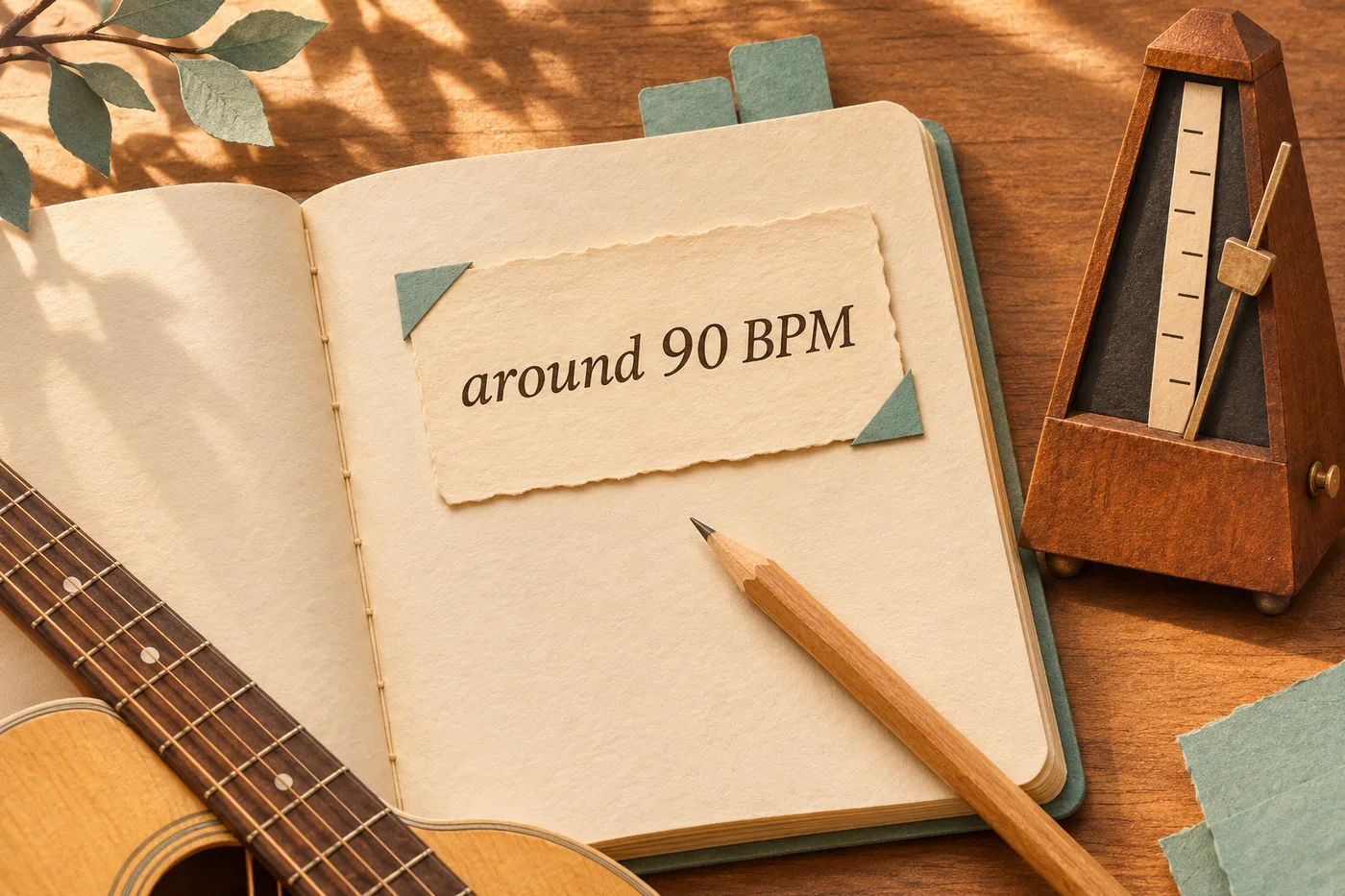
Original concept illustration of a written tempo intention. The metronome is illustrative; no track was measured for this image.
Try one clear pace before comparing alternatives
Choose the example closest to your task and adapt the instruments. Do not combine all three into one request.
A spacious piano cue
Slow piano instrumental with long sustained notes, soft low strings, and generous space between phrases. Calm, reflective mood, very little percussion, no sudden lift, no vocals.
The goal is room around the notes. If the result feels busy despite a slow pulse, revise the density rather than just asking for an even slower song.
A steady explanation bed
Moderate electronic instrumental for a spoken explainer, around 100 BPM. Warm synth pads, rounded bass, a light consistent pulse, sparse lead notes, and few percussion fills. Reassuring, controlled energy, no vocals.
The acceptance test is whether the explanation remains easy to follow. The background music prompt guide expands this speech-first approach across other scenes.
A brisk montage cue
Brisk instrumental indie pop with bright guitar, a clear steady beat, tight drums, and upbeat energy. Keep the rhythm consistent and the melody simple. No long quiet breakdown, no vocals.
Here you want momentum. “Brisk” does not promise that a particular beat will land on a particular cut; select and place the usable section after listening.
Check the pulse in the downloaded file
First choose a section with a clear, regular beat. Tap along to the main pulse rather than every fast note. Listen again in a second section, especially after a transition. If you cannot settle on a pulse, do not report an exact BPM from a quick impression.
For a rough manual check, count the intervals between taps and time them: BPM is approximately 60 times the number of intervals divided by elapsed seconds. If you time from the first tap to the seventeenth, that is 16 intervals. Sixteen intervals taking 12 seconds would imply about 80 BPM. This is an arithmetic example, not a measurement of Flow Music AI output.
A metronome can help you compare that estimate with playback. Audacity's official Rhythm Track documentation describes making regular reference pulses at a selected BPM. Align the reference to a clear beat and check whether it stays close across the section. Mute the reference before exporting your project.
Automatic labels also need judgment. Audacity's Beat Finder guide describes its tool as approximate and notes that compressed modern pop recordings may not work well. Do not treat detected marks as an unquestionable tempo reading.

Original listening-review concept. The cards and checklist do not represent tested tracks or a software interface.
Use the MP3 download and file-check guide to save the intended candidate. Keep your prompt and a short note identifying the section you evaluated. A file label such as “90 BPM target” should not be confused with a verified measurement.
Decide whether to edit or generate again
If the musical direction works and only placement or level is wrong, try the adjustment in your editor first. If the arrangement is too busy, revise that part of the prompt. If the actual pulse needs to change, you can request a new direction or evaluate a tempo adjustment on a copy of the audio.
Audacity's Change Tempo documentation describes changing speed and duration without changing pitch, and warns that extreme changes can introduce audible distortion. Listen to attacks, sustained sounds, and the ending after processing. Editing an existing file is a different operation from submitting another Flow Music AI generation request.
Before another request, check the live Required Credits and your balance. The generator currently displays 10 credits per request. The generation-budget guide helps reserve room for revisions; a new request can change the whole arrangement, not just its pace.
Keep a version worth using before experimenting further. For publishing or paid work, review the current Terms of Service, your supplied material, and the requirements of the destination platform.
Start with one pace, one sound palette, and a clear reason for changing either. Open Flow Music AI, review the brief, and judge the returned audio against the task you actually need to finish.
Published by Flow Music AI. Interface behavior, field limits, displayed cost, and linked documentation checked November 9, 2026. No paid audio generation or BPM-accuracy benchmark was performed for this guide.