

How to Duck Flow Music AI Background Music Under Voice-Over
To keep background music under a voice-over, generate a sparse instrumental in Flow Music AI, then mix it with the narration in an audio editor. Audacity’s Auto Duck can lower the music when the voice starts and let it rise in longer pauses. You will need the music and narration as separate files.
Start with music that leaves room for the words
Imagine a pottery tutorial where you explain how to center clay, pause to show the movement, then speak again. A gentle cue can fill the demonstration without covering the instruction. In the Flow Music AI music generator, choose Simple, turn on Instrumental, and try:
Quiet instrumental for a narrated pottery lesson. Soft marimba, warm bass and a gentle, even pulse. Sparse melody, soft percussion and consistent energy. Leave room for detailed spoken instructions and the sound of hands working with clay.

Listen through a candidate with your actual narration. If the cue has a strong lead part whenever you speak, try a quieter passage or a simpler arrangement. The background music prompt examples provide other sound palettes. On November 19, 2026, the default V5 form displayed 10 Required Credits. Check the live cost before submitting a revised prompt.
Put the music above the narration
Download your chosen track. Open copies of the music and narration in Audacity, with each on its own track. Keep the narration at the same timeline position it occupies in the video. Place the music above it and adjust the starting position so the lesson begins as intended.
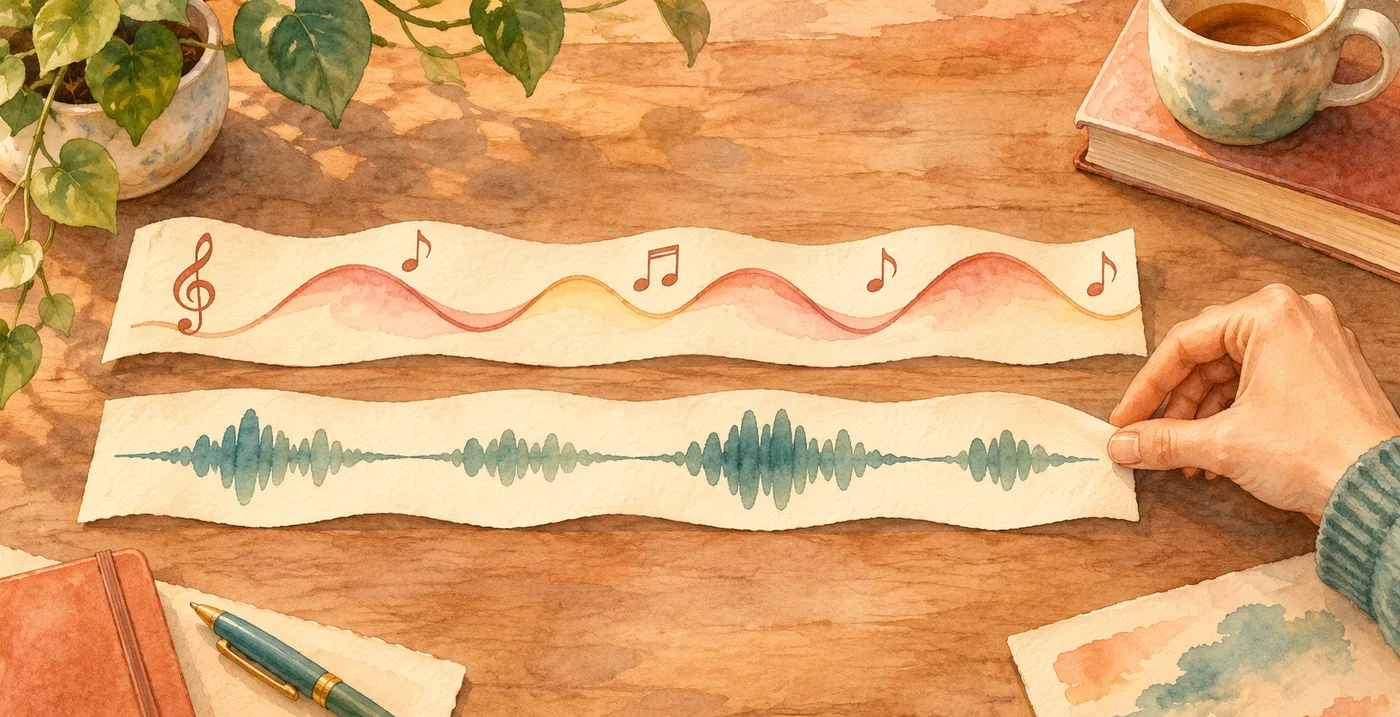
Select the music across the part you want to process, leaving the narration unselected immediately below. Open Effect → Volume and Compression → Auto Duck. The unselected narration acts as the control for the selected music. Audacity’s Auto Duck manual explains the track order and controls.
Begin with the effect’s default settings on a copy. Listen from just before a spoken sentence through the pause after it. If the voice is still hard to follow, try a greater reduction with Duck Amount. Keep the original so you can undo and compare.
Fix the change you can hear
Use a short part of the lesson that includes a quiet sentence, a normal sentence and a pause. That gives you several things to listen for without replaying the whole project after each adjustment.
- The music stays up during a quiet sentence. Check that the narration is the unselected control track below the music. If that is correct, lower Threshold enough to detect the quiet speech, then check a silent section for unwanted triggering from room noise.
- The music rises between every few words. Increase Maximum Pause so short speech gaps stay ducked.
- The volume moves too abruptly. Try longer fade down and fade up times, then check that the first word remains clear.
- The words are clear, but the cue keeps attracting attention. Lower its overall level or try a less busy passage.
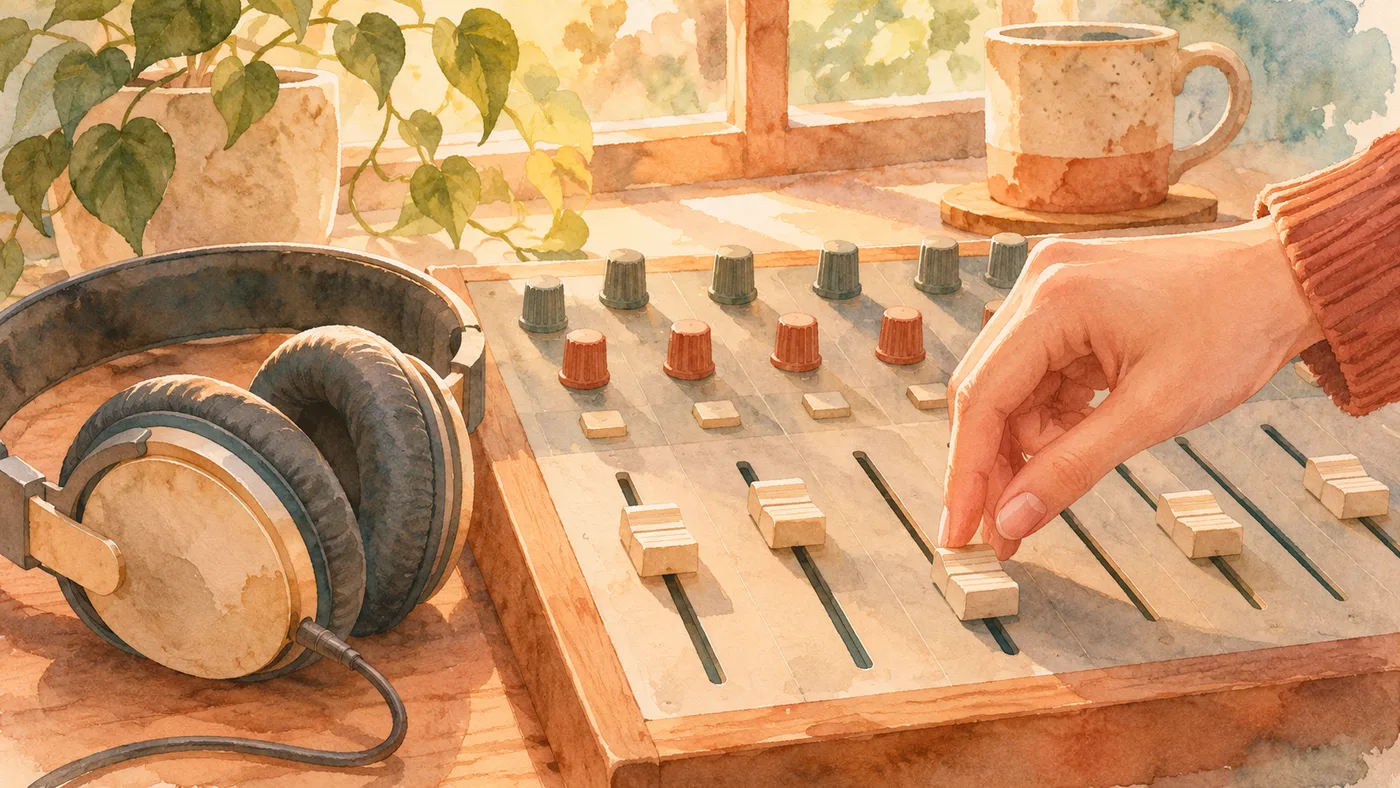
When the changes sound right, export the mix and place it back in the video project. Keep the same starting position and check that the original narration track is muted there, so you hear one copy of the voice. Play the exported video on a phone speaker and listen to the quiet sentence once more.
The pottery lesson is a suggested workflow. Generator controls and editor documentation were checked November 19, 2026. For client or commercial work, review your plan and the Flow Music AI terms.