

How to Record Your Own Vocals Over a Flow Music AI Backing Track
You can make a backing track in Flow Music AI, download it, and record your own singing over it in an audio editor. Begin with Instrumental enabled, choose a sparse arrangement, then rehearse against the actual result before recording. This guide uses Audacity for the separate vocal recording.
The goal is a short rehearsal demo of an original song. Start with one verse and chorus so you can judge whether the accompaniment fits your voice before extending the performance.
Design the accompaniment around your voice
Choose a lyric you wrote and a melody you can comfortably sing. If the tune is still forming, hum a short phrase first and note where you need to breathe. A backing track with a busy lead instrument may leave little room for that phrase.
For an acoustic rehearsal demo, try this original brief in the generator's description field with Instrumental enabled:
Sparse acoustic folk accompaniment for a solo singer: gently strummed guitar, warm bass, restrained percussion, steady moderate pace, short opening, clear spaces between phrases, a slightly fuller chorus and a quiet ending. No vocals or prominent lead melody.
This describes the musical direction. It cannot guarantee a particular chord progression, key, tempo or section length. If you already have a melody, check every sung phrase against the generated harmony; a similar mood alone does not make a compatible backing.

Concept illustration of planning a sparse accompaniment; it is not a generated audio result.
Choose a version you can actually sing over
Listen once without singing, then rehearse your verse and chorus over the downloaded track. Mark the entrance, the chorus change and the last useful phrase on a lyric sheet. Those notes describe this recording, rather than the arrangement you hoped the prompt would produce.
If the accompaniment clashes with your melody, choose another version or change the musical brief before recording. If only the opening is too long, trim the downloaded copy in your editor while retaining the original. Do not spend another generation solely to remove a few seconds of silence.
The current creation form uses 10 credits per request. Check the displayed cost and your balance before each attempt; the generation budget guide explains how to cap retries. Use the MP3 download guide to check the saved file, then keep one unchanged copy as your source.
Record a short vocal test on a separate track
Import the backing into Audacity and save a project. Select your microphone as the recording input, and use headphones for the accompaniment so the microphone does not capture speaker playback. With a suitable audio interface, direct monitoring lets you hear your voice without the distracting delay of software playback.
Audacity's overdubbing guide describes playing existing tracks while recording a new one. Enable playback of other tracks during recording and use Record New Track, normally Shift+R; check the installed version's recording preferences. Keep the backing and voice separate so you can balance them later.
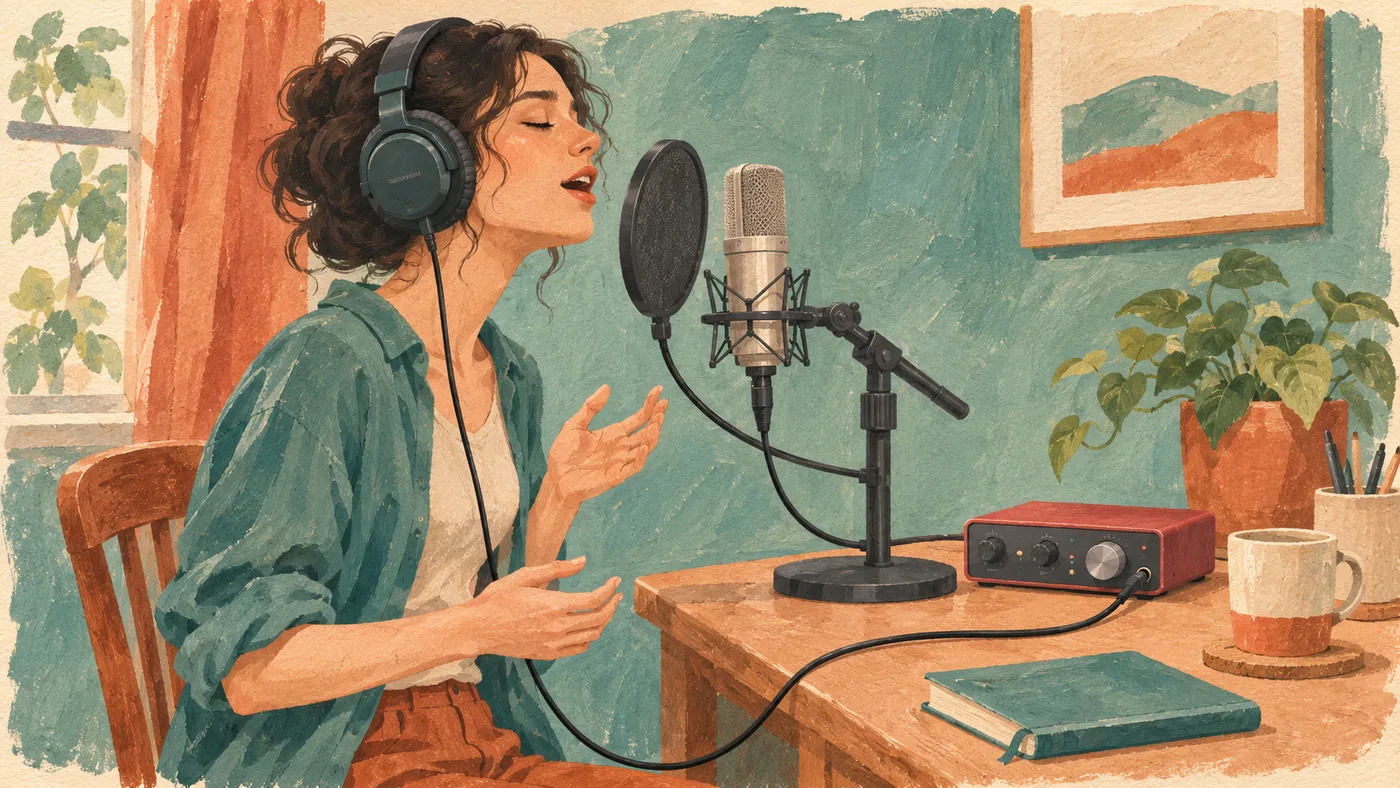
Concept illustration of a home recording setup, not an Audacity screenshot.
Record only the opening line and a chorus phrase first. Play that test back before doing a full take. Check that the input is your microphone, the vocal sounds clean, and the recorded entrance lands where you intended. If loud syllables distort, lower the recording input gain and repeat the test; turning down playback afterward cannot repair a distorted recording.
Separate timing problems from performance choices
A vocal that is late by the same amount throughout may have a recording offset. A vocal that starts correctly and gradually falls behind needs a different check: listen to the performance and investigate recording or device problems. Moving the whole clip cannot fix every phrase drifting by a different amount.
For the short test, compare the first entrance and a later phrase. Keep an untouched take before adjusting alignment. If the timing is difficult to judge, record a brief spoken rhythm against the backing and listen again. Recheck your recording setup before committing to a long performance.
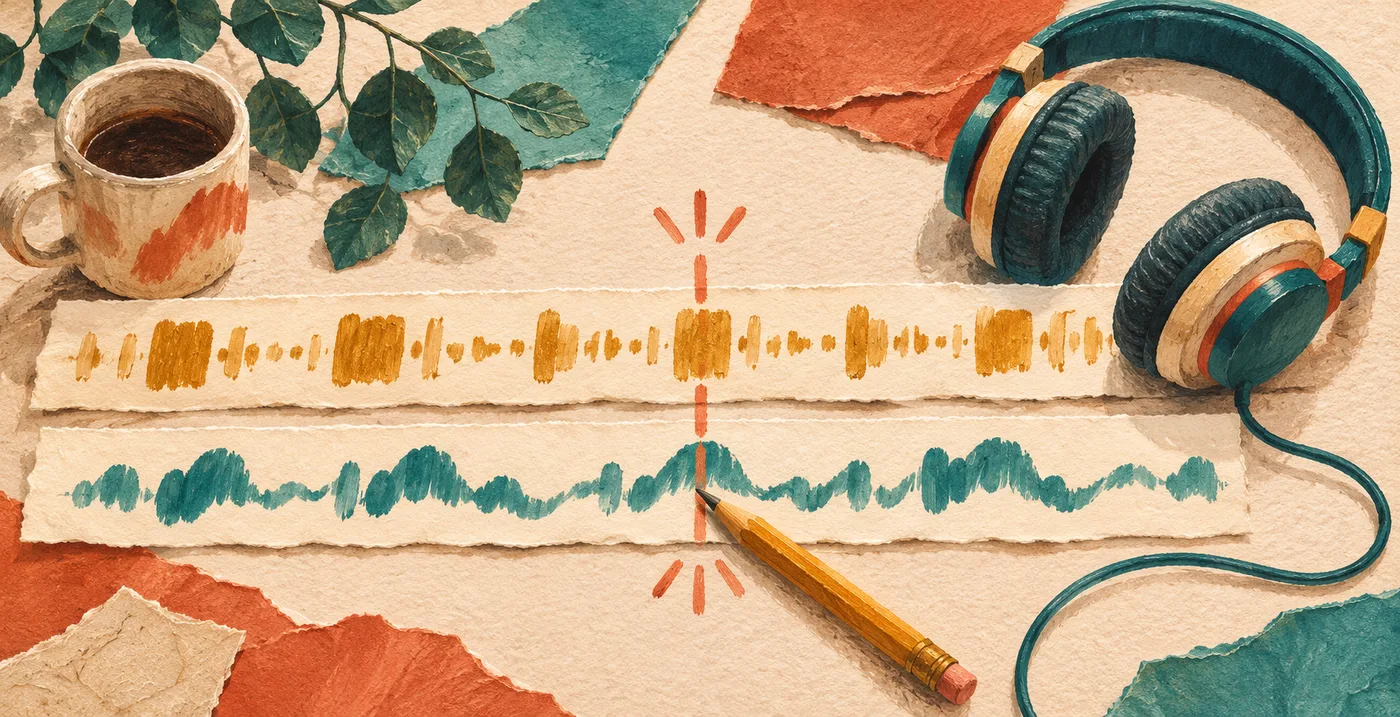
Concept illustration of a timing review; the marks are not measured audio waveforms.
Balance and export the rehearsal demo
Bring the backing down until you can understand the quietest sung line at a comfortable listening level. Then listen through the chorus: the accompaniment may grow even if your track gain stays fixed. Make small balance changes while keeping the original recording available.
Save the editable project and export a separate listening file. Audacity's saving and exporting guide explains the distinction between the project and playable audio. Open the exported file in a normal player and check the entrance, loudest chorus and ending. Keep your backing, vocal take, project and export clearly named so the next revision starts from the right material.
Before sharing publicly or commercially, review the current terms, your plan's permitted uses and the destination's rules. Use lyrics and other supplied material you have permission to use.
Start with one short instrumental and one clear vocal test. Once the accompaniment supports your melody and the test records cleanly, record the complete verse and chorus.
Product form, implementation and sources checked November 22, 2026. The prompt is an original suggested input. No audio generation or recording benchmark was performed.